
Quickstart Guide
Six steps from sign-up to your first paper trading bot. Most users finish in under five minutes. No credit card required.
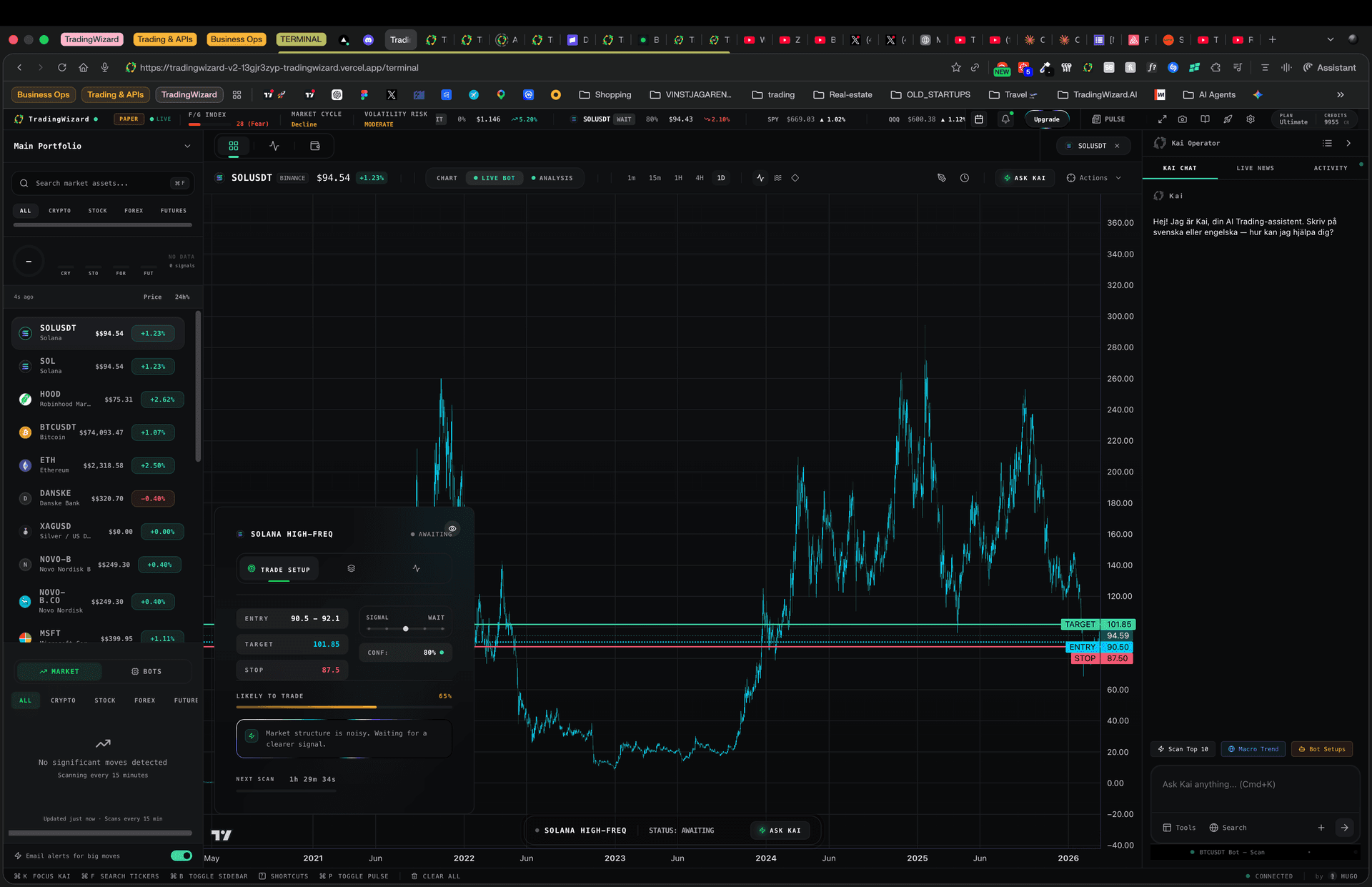
The terminal at tradingwizard.ai/terminal, chart center, watchlist left, Wiz right.
Create your free account
Starter is free forever, no credit card. You get Wiz with a daily message cap, blurred signals, and paper trading. Upgrade to Pro ($39/mo) or Ultimate ($99/mo) later from Settings.
Outcome: you land on /terminal with your workspace ready.
Finish the 60-second onboarding
A short wizard asks for three things: your trading level (beginner, intermediate, advanced), style (day, swing, or position), and risk tolerance (conservative, moderate, aggressive). Wiz uses these to calibrate every analysis and setup it produces for you.
Outcome: your profile drives the tone, risk sizing, and target timeframes Wiz suggests. You can change any of it later in Settings -> Profile.
Pick a watchlist or jump straight to a symbol
The left rail holds your watchlists, market track, and live bot signals. Click any ticker to load it on the chart. To search anything else, open the Command Palette:
Cmd+K (macOS) - Ctrl+K (Windows / Linux)
Type a ticker (e.g. NVDA, SOLUSDT, EURUSD) and hit Enter. Stars any result to add it to your default watchlist.
Outcome: the chart loads with TradingView candles and the asset-specific intel HUD on top.
Ask Wiz for a read on the chart
Open the operator panel on the right. Wiz reads the symbol you have loaded on the chart and returns a structured setup with entry, stop, targets, and a confidence score. Try this verbatim:
Give me a 4h long setup on SOLUSDT with entry, stop, and two targets.
This is a one-off read of the chart as it looks right now. To have it re-run on its own, put a bot on the symbol, that is step 5.
Outcome: you see Wiz's verdict plus an Execution Protocol card you can act on.
Deploy your first bot (paper)
From the chart, click Deploy Bot, or ask Wiz directly: "Deploy a swing bot on SOLUSDT". The Deploy Bot modal lets you name the bot, set its market, timeframe, and risk. Every new bot starts in paper mode, no real funds moved.
Starter gets one paper bot, which runs for 14 days. Pro unlocks multiple bots and full management. Ultimate unlocks the full set of Wiz bots plus live web search. Bots find setups for you, they never place a live trade on your behalf.
Outcome: the bot is stored in MongoDB and now scans whenever its market is open (around the clock for crypto). Opens, closes, and SL/TP moves stream into the Signals flow in the left rail and as 8-second toasts bottom-left.
Turn on notifications
Open Settings -> Notifications and pick the channels you want. Each channel can be toggled independently:
- In-app: toasts and the alerts tab, on by default.
- Email: daily digest + critical alerts via SendGrid.
- Discord: connect in Settings -> Discord Integration, then claim your role for live bot + alert pings.
Outcome: your bot tells you when it opens, closes, or moves stops, on the channel you actually check.
Ready to run it
Open the terminal and work through steps 3-6 with a real symbol of your choice.
